Browser Dashboard Guide
The browser dashboard at app.nestpatrol.com, as tasks. Use the search box to jump to a “how do I…”. Each task shows the screen and where to click.
Finding your way
Read the Overview overview home start tiles launchpad summary red
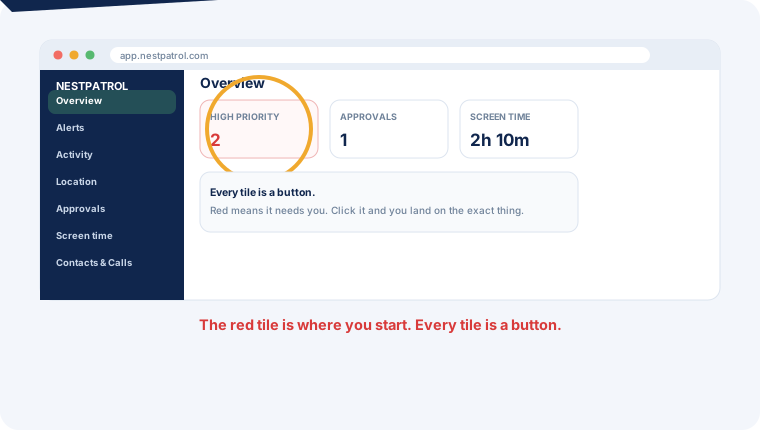
The Overview is a launchpad: every tile is a button that takes you to the thing it counts. Red or amber means something needs you. If everything is quiet, you are done. That is the point of it.
Find anything with search search find jump keyboard slash quick navigate where
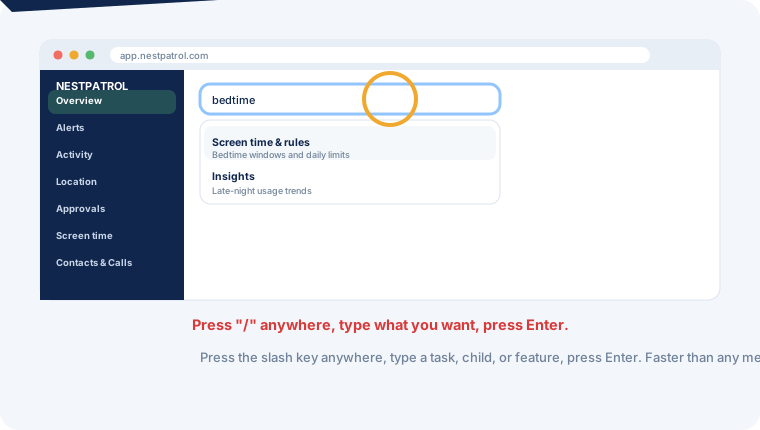
Press the / key anywhere, or click the search box. Type a task, a child’s name, or a feature (“bedtime”, “contacts”) and press Enter. Faster than any menu.
Review
Review a safety alert alert review severity confidence flagged bullying scam resolve
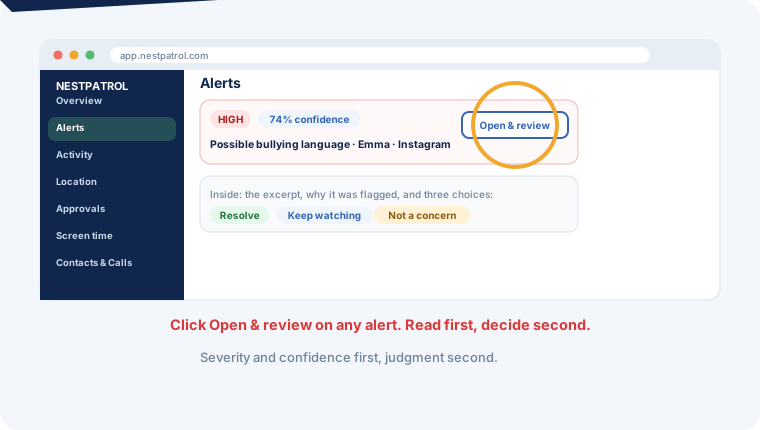
Open Alerts, click into any alert. You get the excerpt, why it was flagged, and three choices: Resolve, Keep watching, or Not a concern. That last one tunes the rules and cuts future noise.
See location and set geofences location map geofence saved place arrive leave school home where is
Location shows current position and history. Add a saved place with a radius and you get an arrival and departure notification. Requires location enabled on the child’s phone.
Read reports and the Family Timeline report weekly timeline history trends summary email
Activity holds analytics, generated reports, and the Family Timeline, which orders device, app, safety, and emergency events as they happened. Ten minutes a week here beats daily feed-checking.
Web rules
Block your own sites and words site rules custom block allow website word keyword blocklist allowlist domain
Open Control, then Browser Rules. Type one site (such as example.com) or one word per line, choose Block or Always allow, pick one child or all children, and press Add to list. A site rule covers its subdomains. A word blocks any site with that word in its name. The phone applies your list in every browser, including private browsing, the next time it syncs. Browser Rules comes with Plus and Complete, and Essential families can add it for $1.99 per month under Account Settings. This screen is on the browser dashboard only.
Time: give it, take it, schedule it
Set screen time and bedtime set limit bedtime schedule school focus daily hours change rules
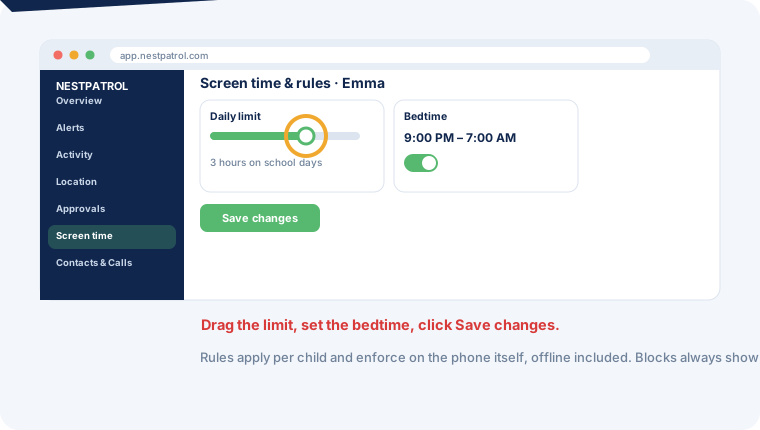
Screen time & rules, pick the child, drag the daily limit, set the bedtime window, click Save changes. Rules enforce on the phone itself, offline included.
Add time (grant extra time) add extra time more minutes today grant give reward
Same screen: Screen time & rules has today’s usage and extra-time buttons per child. Applies today only; the routine returns tomorrow.
Answer approval requests approve deny request extra time app access break uninstall
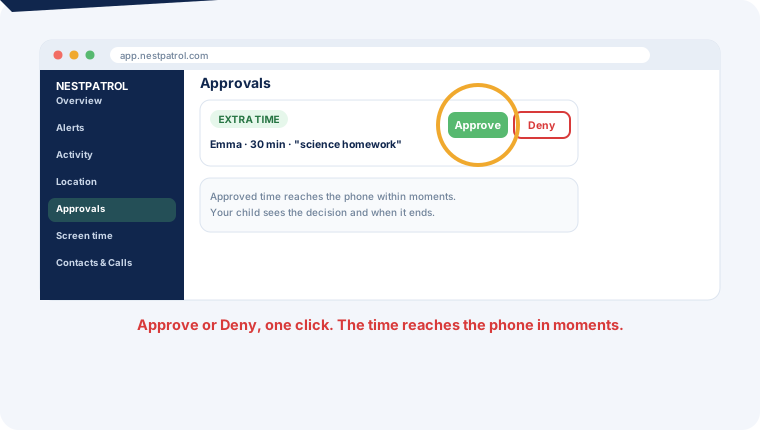
Approvals lists every pending request with the child’s reason. Approve or Deny in one click; the phone applies it within moments and your child sees the decision.
Take time away or lock a phone now lock now take away remove stop immediately unlock dinner
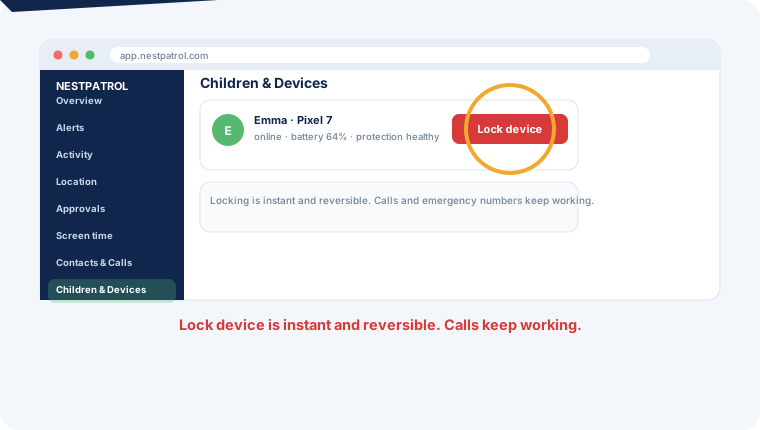
Children & Devices, find the device, click Lock device. Instant and reversible; calls and emergency numbers keep working. To take time away for today, lower the daily limit instead.
Block and allow
Block or allow a website block website site domain web filter allow fix wrongly blocked
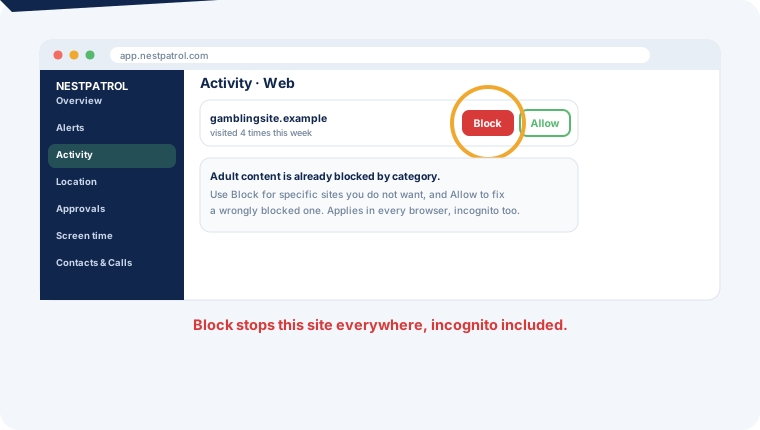
Adult categories are blocked automatically. In Activity > Web, click Block on any specific site, or Allow to fix a false block. Applies in every browser on the phone, incognito included.
Review the contact list, block or delete numbers contacts calls numbers block delete restore stranger unknown phone list
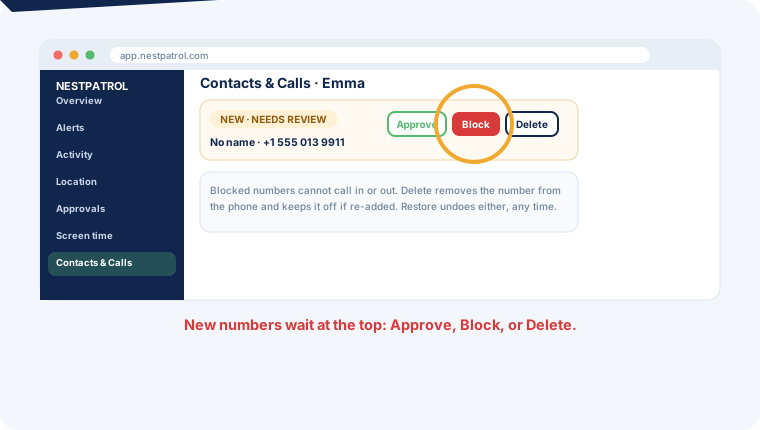
Contacts & Calls shows each child’s phone contacts. New numbers wait at the top. Block stops calls both ways; Delete removes the number from the phone and keeps it off. Restore reverses either.
Talk and manage
Reply to your child’s messages message chat reply pick up talk
Activity > Messages. Type a reply; it reaches their Chat in moments.
Add a child, enroll or remove a device add child enroll device code qr remove replace new phone
Children & Devices handles enrollment codes, device health, replacement, and removal. Pictures in the Install Guide.
Invite another parent or guardian invite guardian co-parent grandparent family member access account
Children & Devices > Family roles > Add adult. Choose their role and exactly which permissions they get (view alerts, manage rules, respond to emergencies). They receive an email invitation and their own sign-in, and you can revoke access from the same panel. In the Parent App: Family > Guardians > Invite.
Export or delete your data export delete data privacy download account close
Privacy & Security has one-click export and the deletion flow, explained on the account deletion page.