Parent App Guide
Everything you do as a parent, as tasks. Use the search box to jump straight to a “how do I…”. Each task shows the tab, the arrow shows where to tap.
The six tabs in ten seconds
Dashboard is your family overview: quick lock, a live SOS banner if one is active, and a location card per child. Protection holds Apps & Web, Screen Time, Location, and Custom Rules. Activity holds alerts, contacts and calls, the activity feed, reports, the Safety Assistant, requests, messages, and help. Approvals is every pending request in one badge-counted list. Family holds children, devices, guardians, and consent & privacy. Account holds your account, billing, alerts & notices, and security.
The app and the website are organised differently. This page describes the Android Parent App. For the website, see the Browser Dashboard Guide.
Review
Review a safety alert alert review flagged bullying scam severity confidence check message
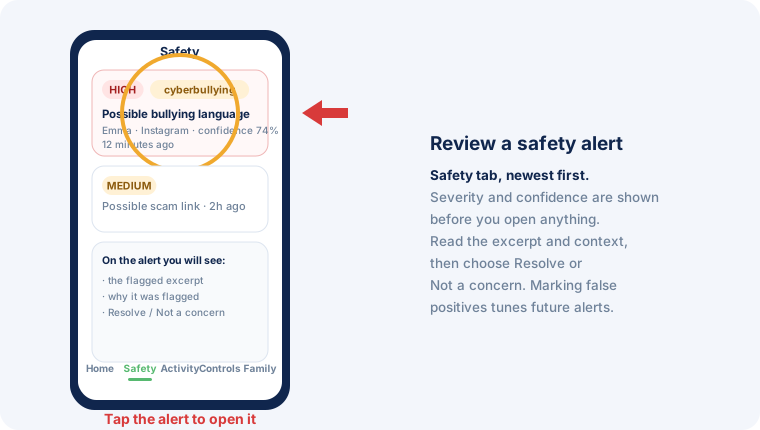
Open the Activity tab, first section, Alerts. Alerts are newest first, with severity and confidence on the card. Tap one to read the flagged excerpt and why it was flagged, then choose Resolve or Not a concern. Marking false positives makes future alerts more accurate.
Respond to an Emergency SOS sos emergency panic alert child help location acknowledge safe
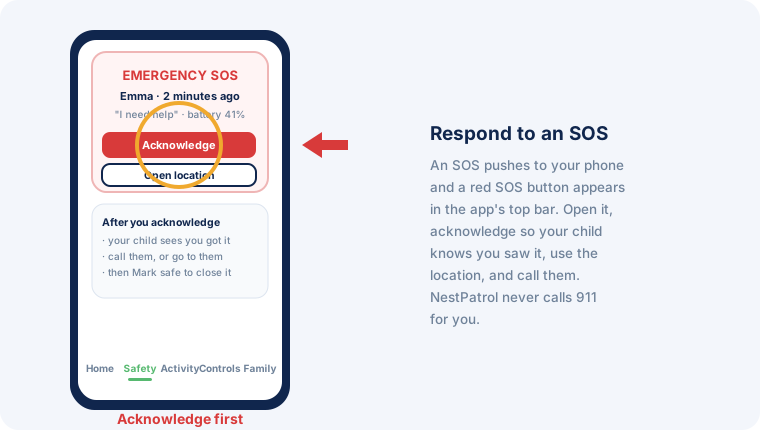
An active SOS shows as a banner on Dashboard and in Activity > Alerts. Acknowledge first so your child sees you got it, open their location, and call them. When it is over, mark them safe. NestPatrol never calls 911 for you.
Check screen time and activity usage screen time report analytics trends how long apps websites history
Open Activity and choose Activity (the feed) or Reports. The feed shows what happened in order; Reports shows totals and trends per child. For the weekly picture, Reports beats checking the feed daily.
Ask the Safety Assistant about a concern ai assistant guidance safety intelligence question advice family context
Open Activity > Safety Intelligence. Ask a question in your family’s context and get AI guidance grounded in what NestPatrol has actually seen. Included on Complete. Nothing here is medical, psychological, legal, or financial advice.
Time: give it, take it, schedule it
Set the daily limit and bedtime set limit schedule bedtime school focus routine daily hours change
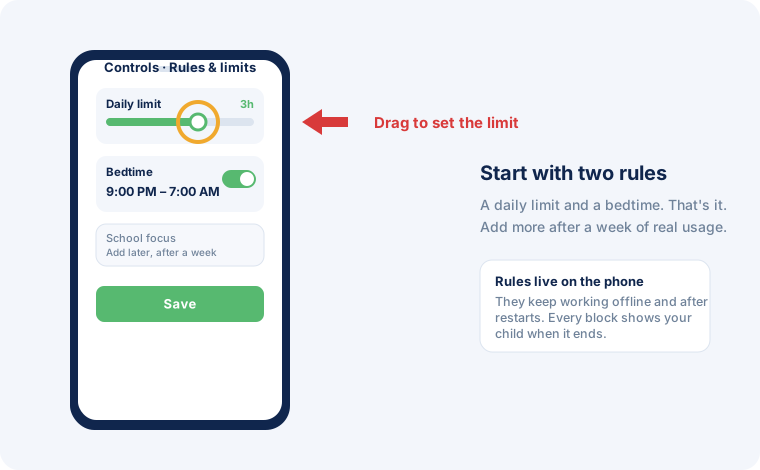
Protection > Screen Time, pick the child. Drag the daily limit, set the bedtime window, save. Rules enforce on the phone itself and keep working offline. Every block tells your child when it ends.
Add time (grant extra time) add time give extra more minutes today grant reward homework
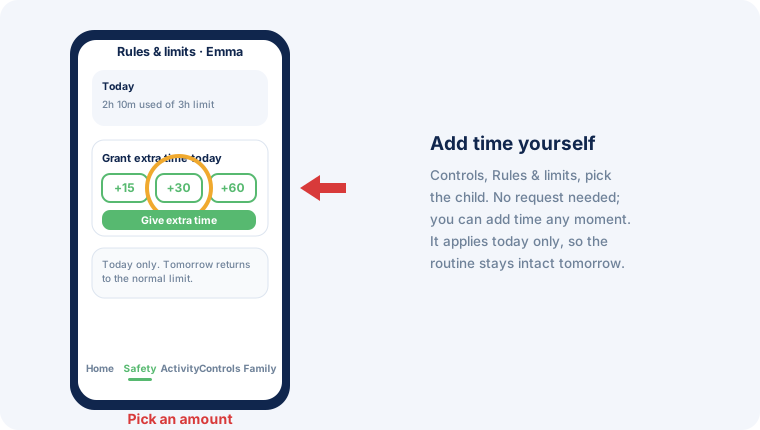
Same screen: Protection > Screen Time, pick the child, tap +15, +30, or +60. It applies today only, so tomorrow returns to the normal routine. No request from your child is needed.
Answer a request for more time or app access approve deny request extra time app access pause break uninstall answer child asks
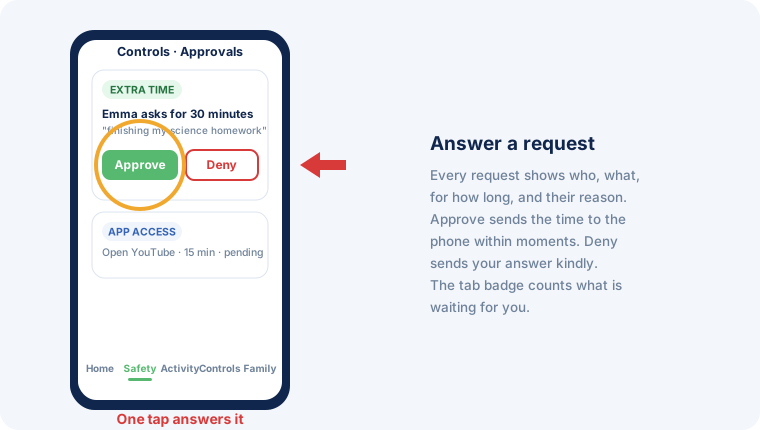
Approvals lists every pending request with a badge showing how many wait, plus who, what, for how long, and your child’s reason. One tap answers it, and the decision reaches the phone within moments.
Take time away or lock the phone now take away remove time lock now stop phone dinner punishment pause immediately
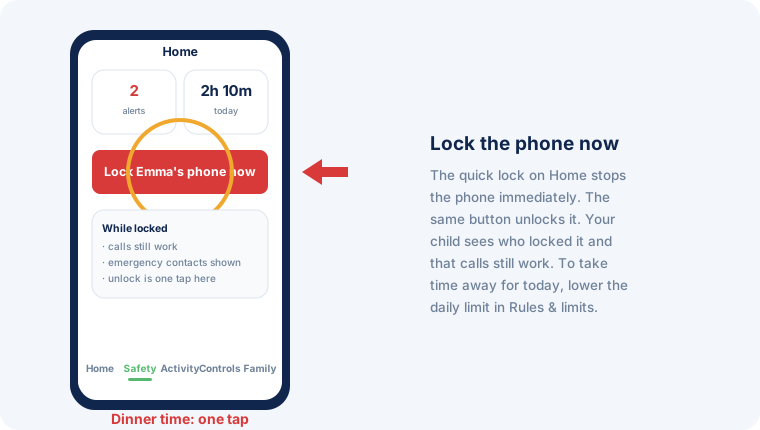
For right now: the quick lock on Dashboard stops the phone in one tap, and the same button unlocks it. Calls and emergency contacts keep working while locked.
For today: lower the daily limit in Protection > Screen Time; the phone blocks when the new limit is reached.
Block and allow
Block or unblock an app, or filter the web block app instagram game tiktok youtube disable forbid unblock allow website site web filter
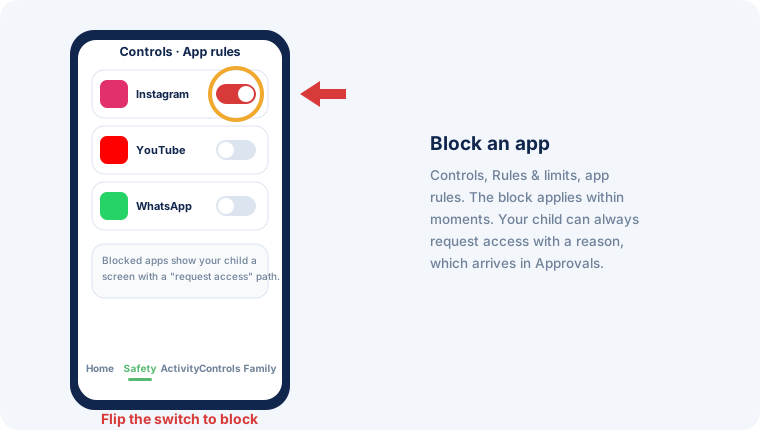
Protection > Apps & Web. Flip the switch next to any app, or block a specific site. Adult content is blocked by category automatically, in every browser, incognito included. Your child sees a block screen with a path to request access, which arrives in Approvals with their reason.
Set a geofence geofence saved place arrive leave school home boundary
Protection > Location. Add a saved place with a radius and you get an arrival and departure notification. Requires location enabled on the child’s phone.
Approve, block, or delete a phone contact contact number phone call block delete stranger unknown restore approve emergency contacts
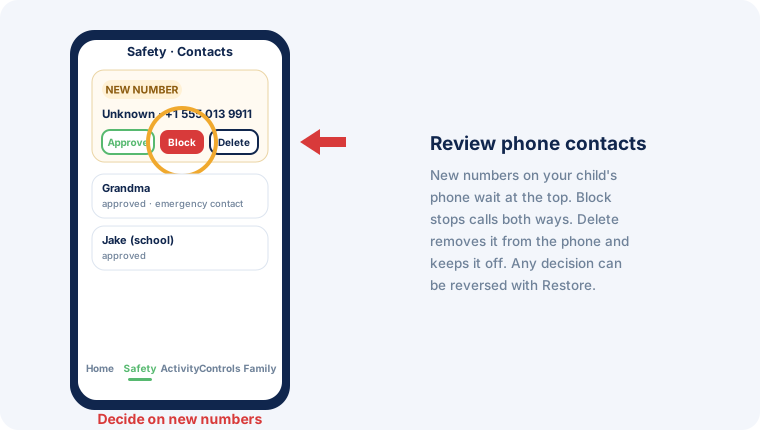
Activity > Emergency Contacts does two things. It is where you assign your own emergency contacts (up to five per child; they also show on the child’s Help screen, in their phone contacts, and on a locked phone). It is also where new numbers synced from your child’s own phone contacts wait for a decision: Block stops calls both ways, Delete removes the number from the phone and keeps it off even if re-added, and both are reversible with Restore.
Talk
Reply to a message from your child message chat reply text pick me up talk answer
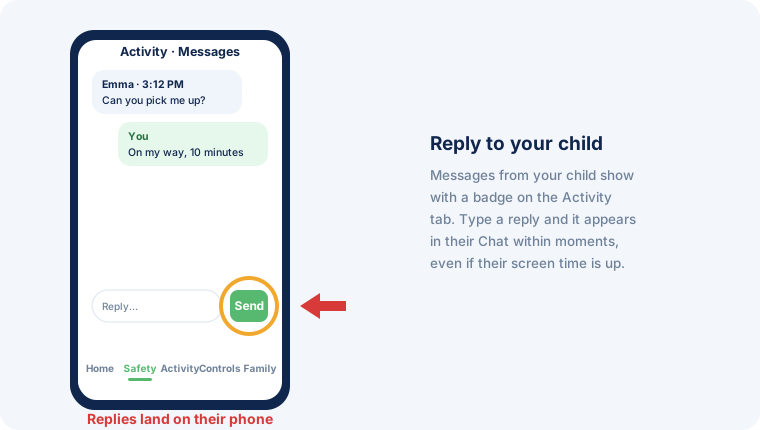
Activity > Messages. Your child’s messages show with a badge; type a reply and it lands in their Chat within moments, even if their screen time is used up.
Setup and account
Add a child or enroll a new device add child new device enroll code qr setup another phone
Family > Children, then Add child; or Family > Devices to enroll a device on an existing child. The full walkthrough with pictures is in the Install Guide.
Invite another parent or guardian invite guardian co-parent grandparent family member access account
Family > Guardians > Invite. Choose their role and exactly which permissions they get. They receive an email invitation and their own sign-in, and you can revoke access from the same screen.
Manage consent, or export or delete data consent privacy export delete data download account close health consent
Family > Consent & Privacy, per child. This is also where you request a data export or start the deletion flow, explained on the account deletion page.
Manage billing or notification settings billing subscription plan upgrade downgrade cancel notifications alerts security password
Account holds your plan and billing under Billing, what you get notified about under Alerts & Notices, and sign-in and password under Security.