How It Works
From account setup to everyday use
- Choose Essential, Plus, or Complete. Every plan includes the same 14-day free trial.
- Create and verify the parent account. Use the Parent App or any modern browser. The apps are listed on the Download page.
- Start the 14-day free trial. Secure Stripe checkout requires a payment method. Billing starts automatically after 14 days unless you cancel.
- Add each child and enroll their phone. Enter the short-lived code from the parent dashboard on the child phone. You can also scan the QR code from the Parent App.
- Tell your child before you enroll. Show them the app, explain what it collects, and answer their questions. NestPatrol is visible by design and may not be hidden.
- Review required permissions together. Setup is visible, and the child can see that NestPatrol is installed.
- Choose settings and test protection. Configure alerts, routines, location, and approval rules that apply to the selected plan.
- Review alerts with context. Use category, severity, confidence, explanation, and available evidence before deciding what an alert means.
What NestPatrol does not do
- It does not contact schools, police, or any other organization for you.
- It does not call emergency services. If your child is in danger, call 911 or your local emergency number.
- It does not decide what an alert means. You do.
- It does not offer every feature on every phone. Some features work on Android only and some on iPhone only. See which features work on which phone.
Start your 14-day free trialReview plans
Two ways to manage your child's device
Control it from the Parent app, your browser, or both.
Both use the same NestPatrol account. Change a rule on your phone and it shows in your browser. Change it in your browser and it shows in the app. Your child's device receives the update either way.
Parent app
Best for quick actions during the day: lock a device, add 15 minutes, answer an SOS, approve a request, reply to a message.
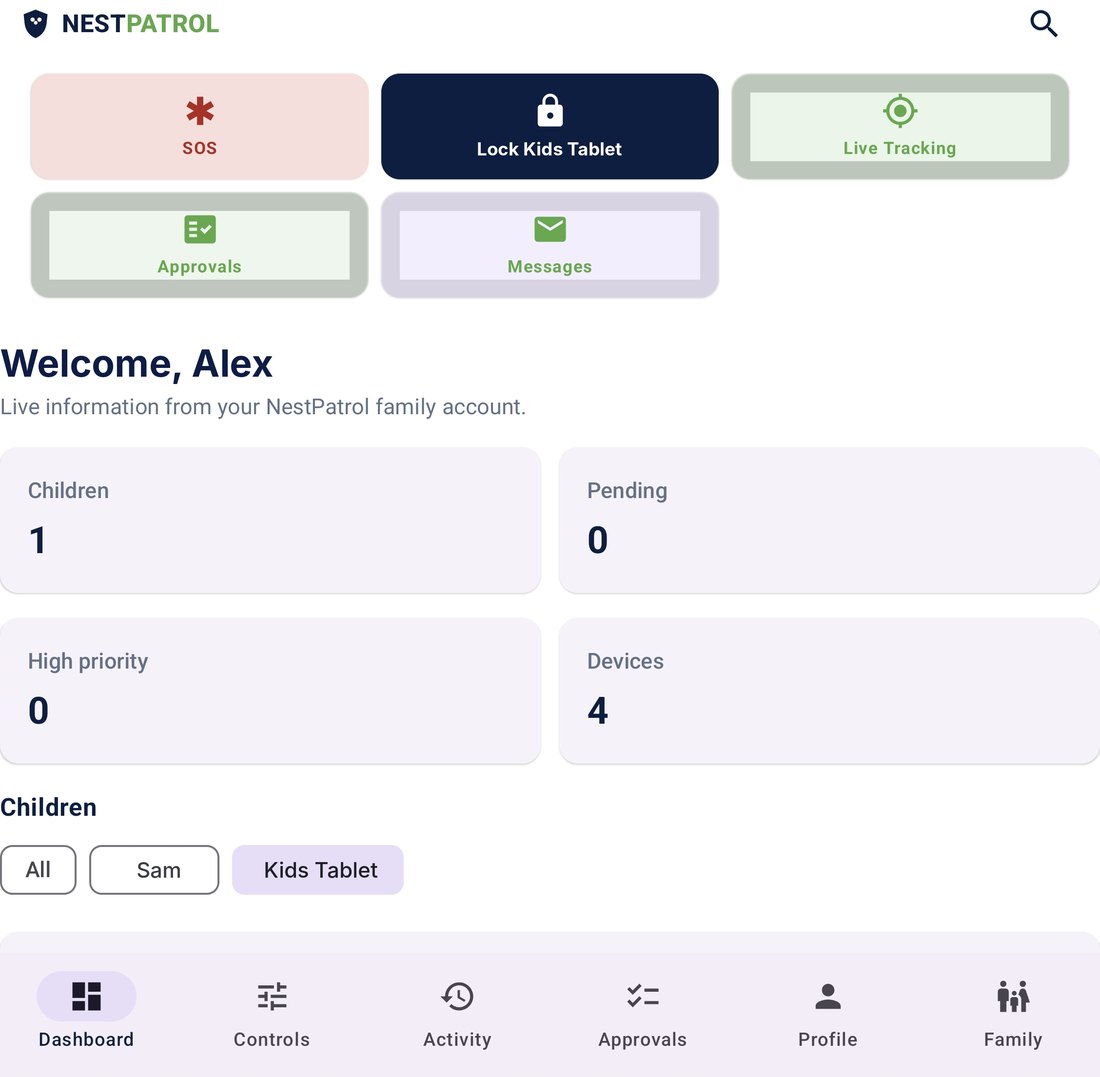
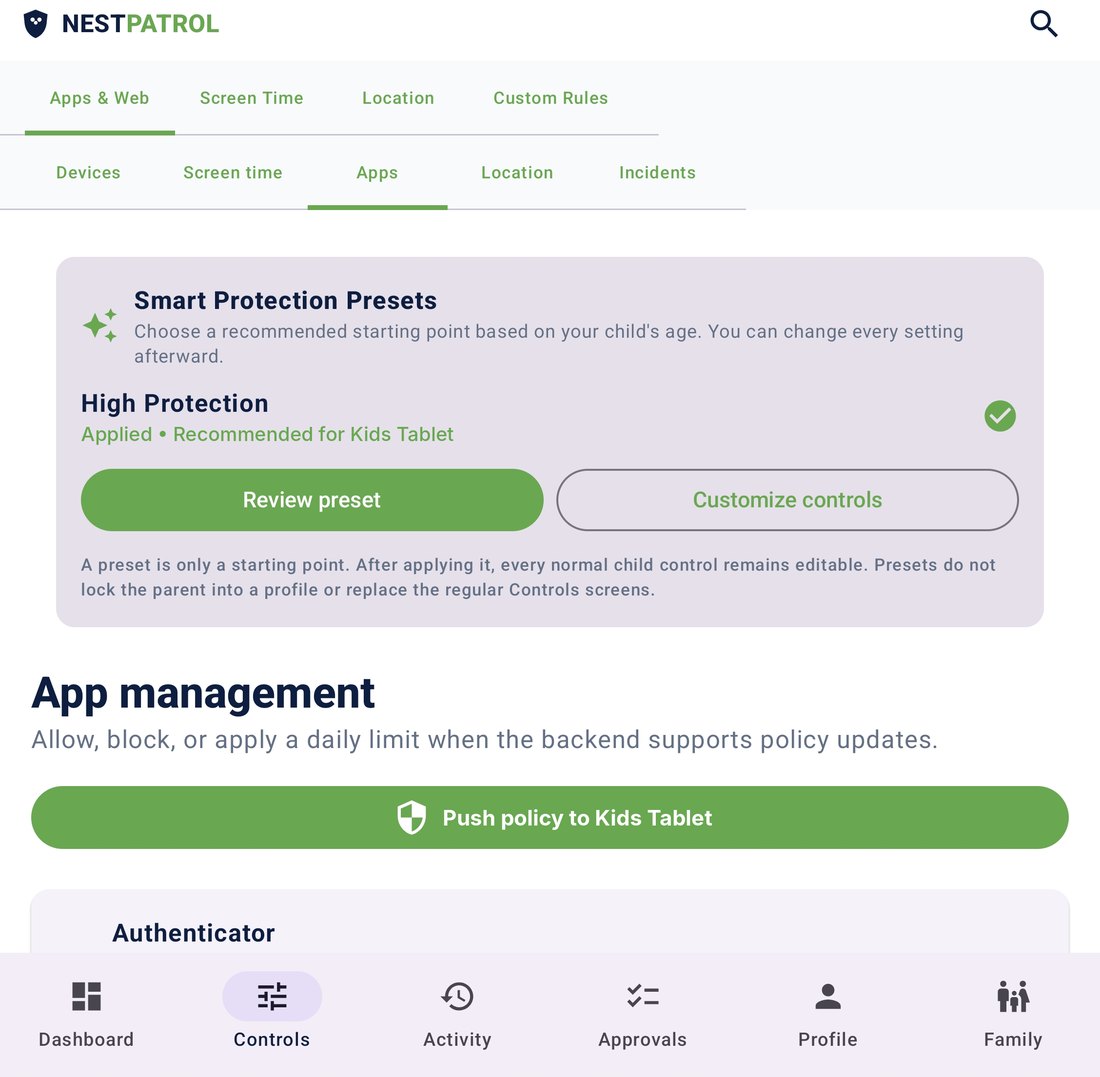
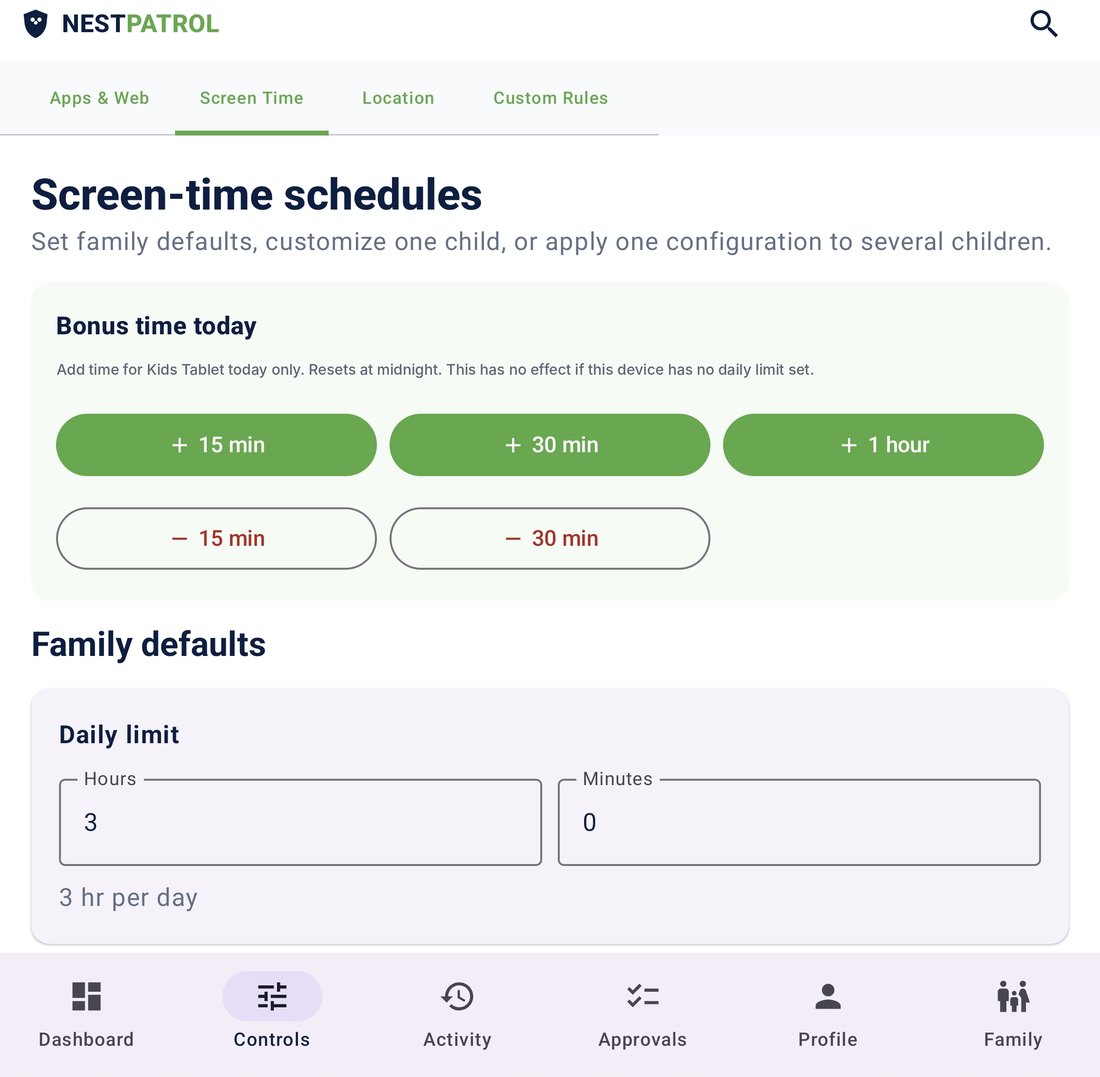
- Lock or unlock a child's device
- SOS alerts and live tracking
- Approve or deny requests
- Message your child
Browser dashboard
Best for setup and review on a bigger screen: write rules, check reports, manage every child and device. Nothing to install. Sign in at app.nestpatrol.com.
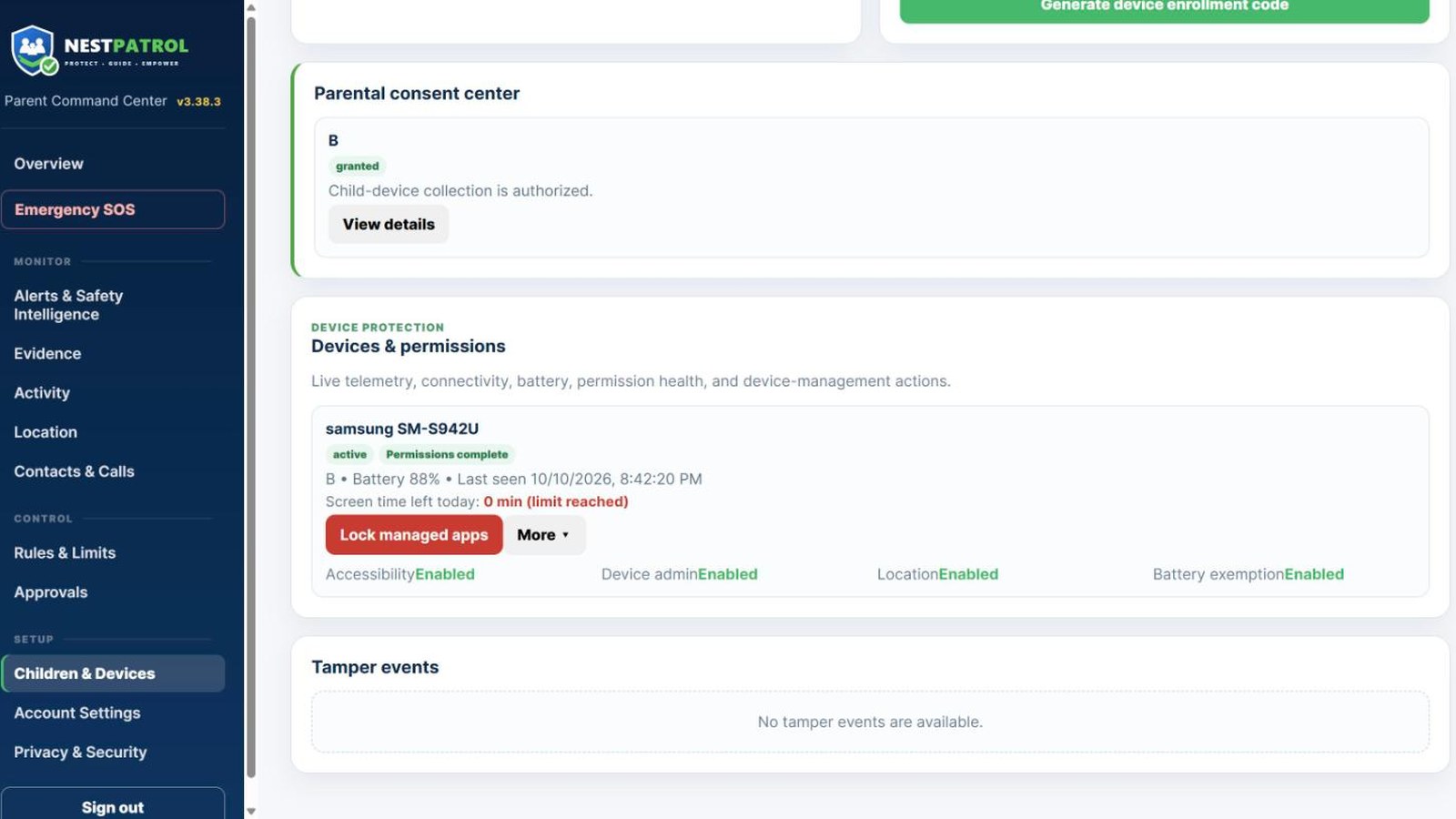
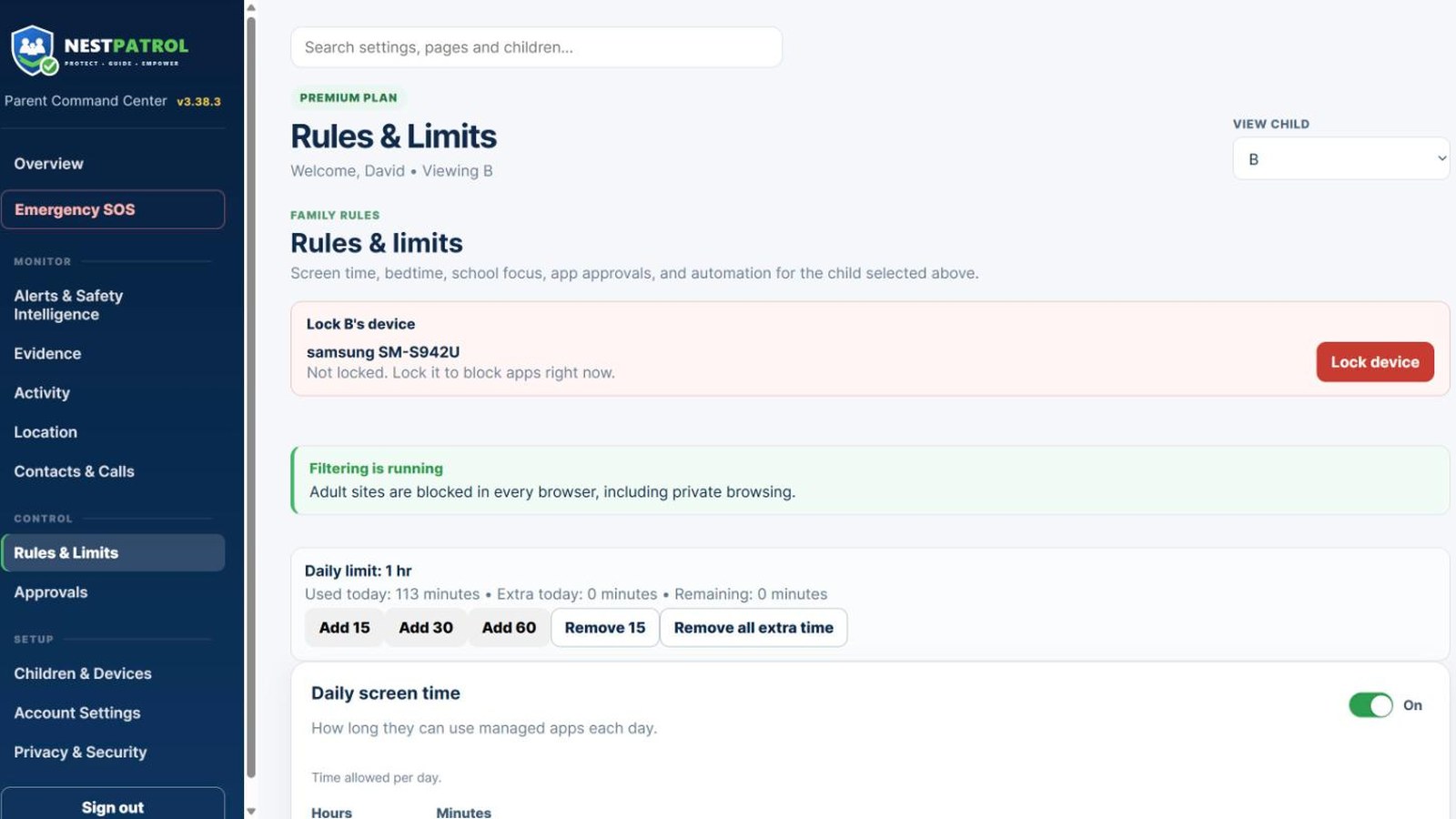
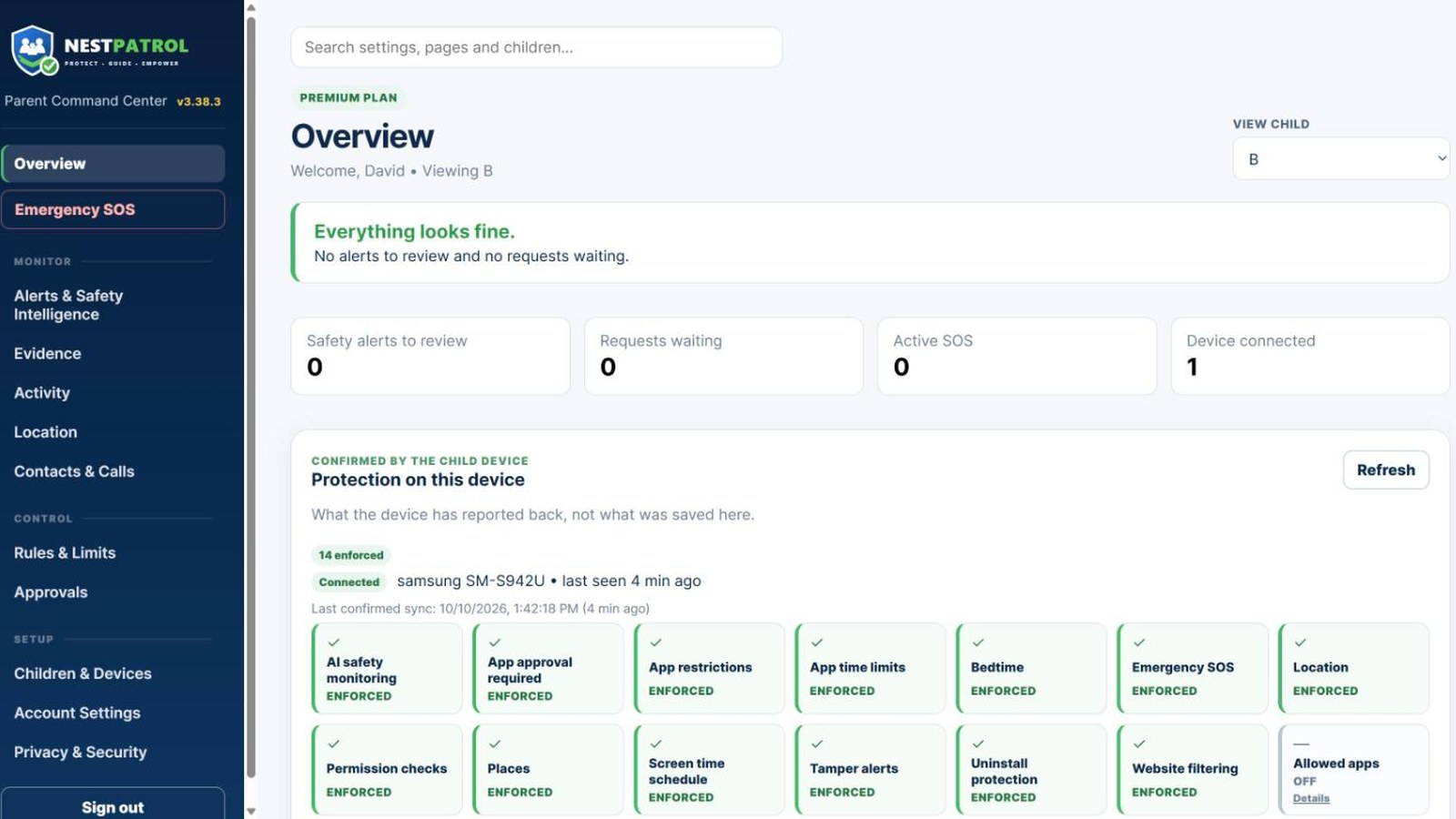
- Lock or unlock a child's device
- Screen time, bedtime and school-focus rules
- Alerts, reports and Family Timeline
- Add children and enroll devices
Use one or both. You do not need the Parent app to use the dashboard, and you do not need the dashboard to use the app. SOS and safety alerts reach you fastest through the Parent app. Your child's device runs the NestPatrol Kids app in every case.